
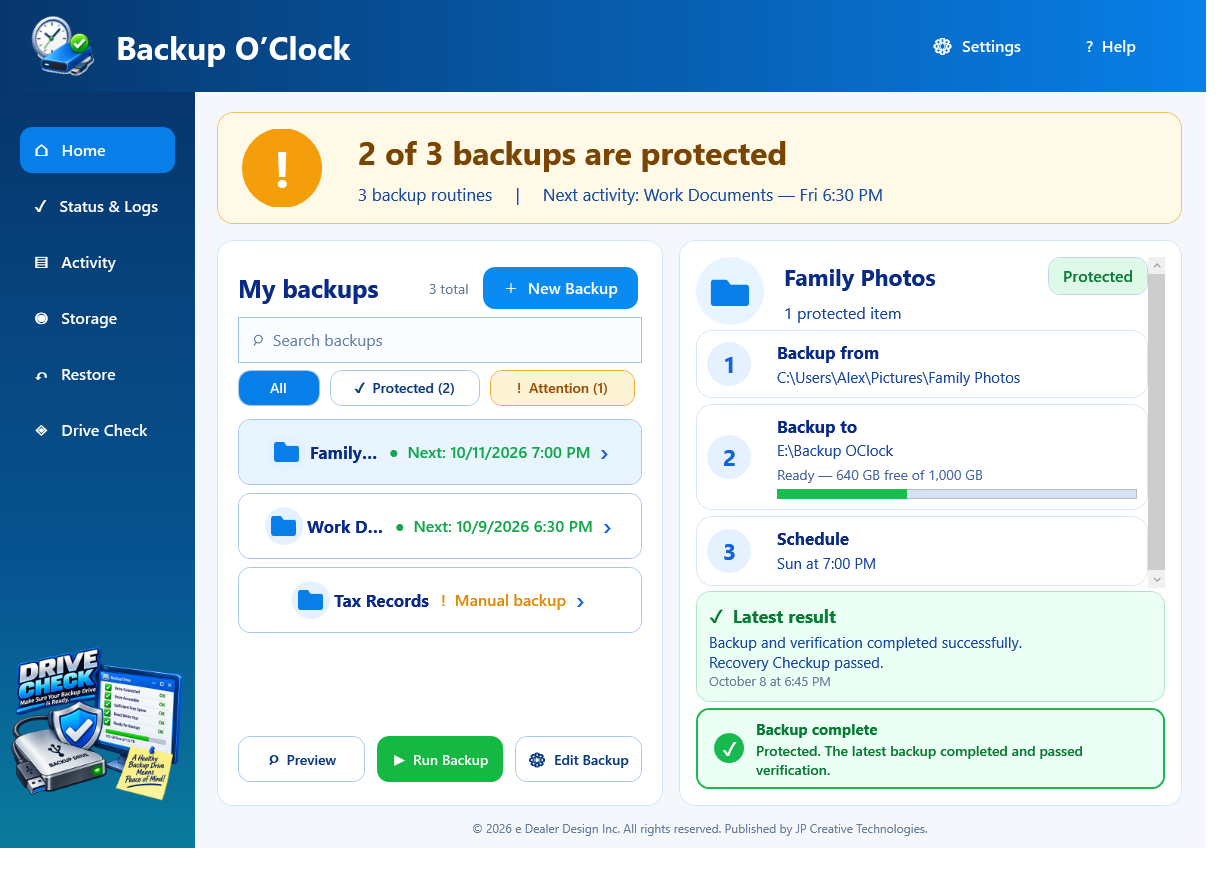
Getting started
Create your first backup routine.
Five clear steps take you from an empty installation to a reusable file-and-folder backup plan.
Open step-by-step guide →Backup O'Clock help center
Search by what you want to do, the control you see, or the exact words in a message. Common misspellings and phrases such as “my drive is missing” are included.
Best matches
Fastest routes
Each guide keeps the steps, screenshot, and related answers together.
Visual walkthroughs
Every screenshot comes from a clean Windows demonstration copy. No customer paths, names, files, or backup records are shown.
Five clear steps take you from an empty installation to a reusable file-and-folder backup plan.
Open step-by-step guide →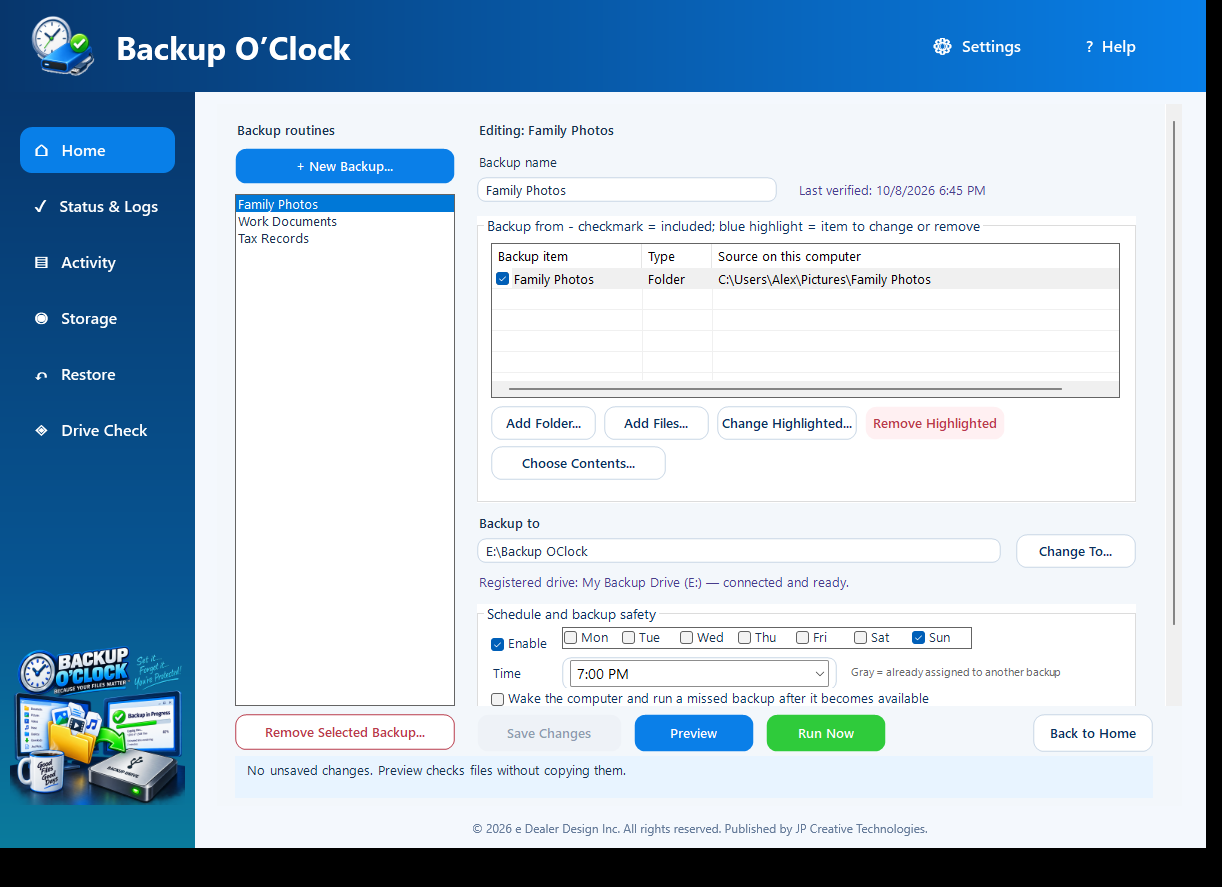
Selecting the folders that hold your important files produces a clearer, more reliable backup while still supporting fonts, creative work, presets, and uncommon file types.
Open step-by-step guide →Preview estimates the work. Run Backup copies what changed and verifies the protected content before reporting success.
Open step-by-step guide →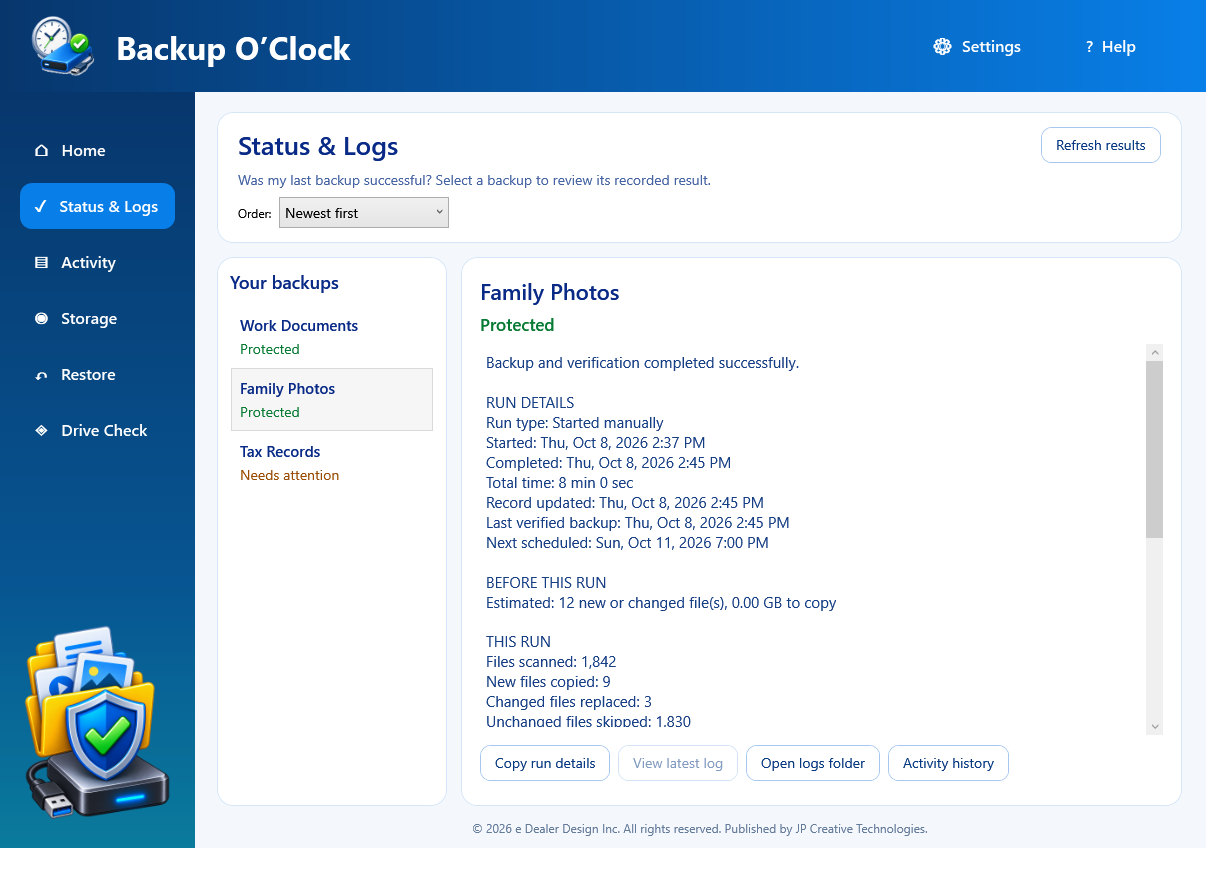
The latest record separates the forecast from the work that actually happened and tells you what to do next.
Open step-by-step guide →Each backup routine can run manually or on its own days and time through Windows Task Scheduler.
Open step-by-step guide →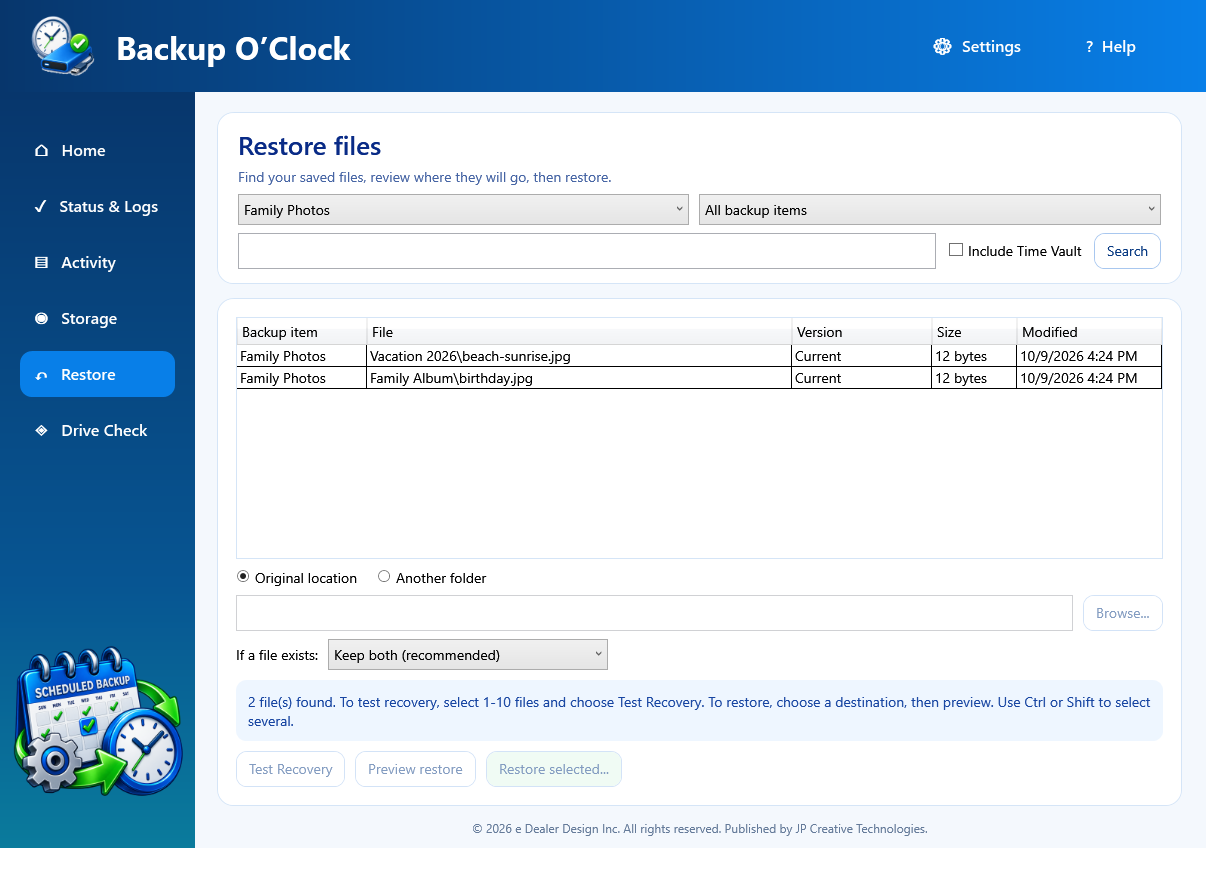
A small test restore is the clearest way to confirm that you can find and open protected content.
Open step-by-step guide →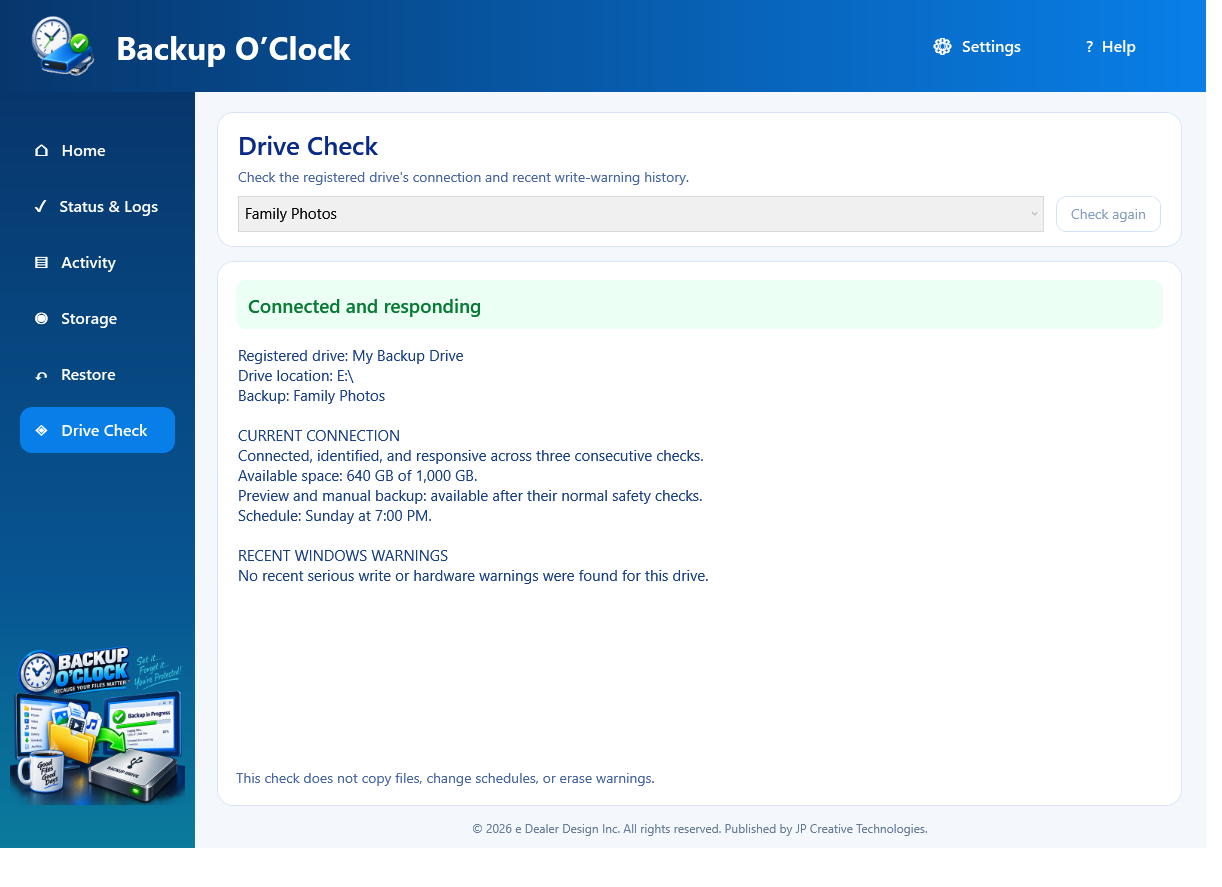
Backup O’Clock identifies the registered drive and keeps each routine tied to its intended destination.
Open step-by-step guide →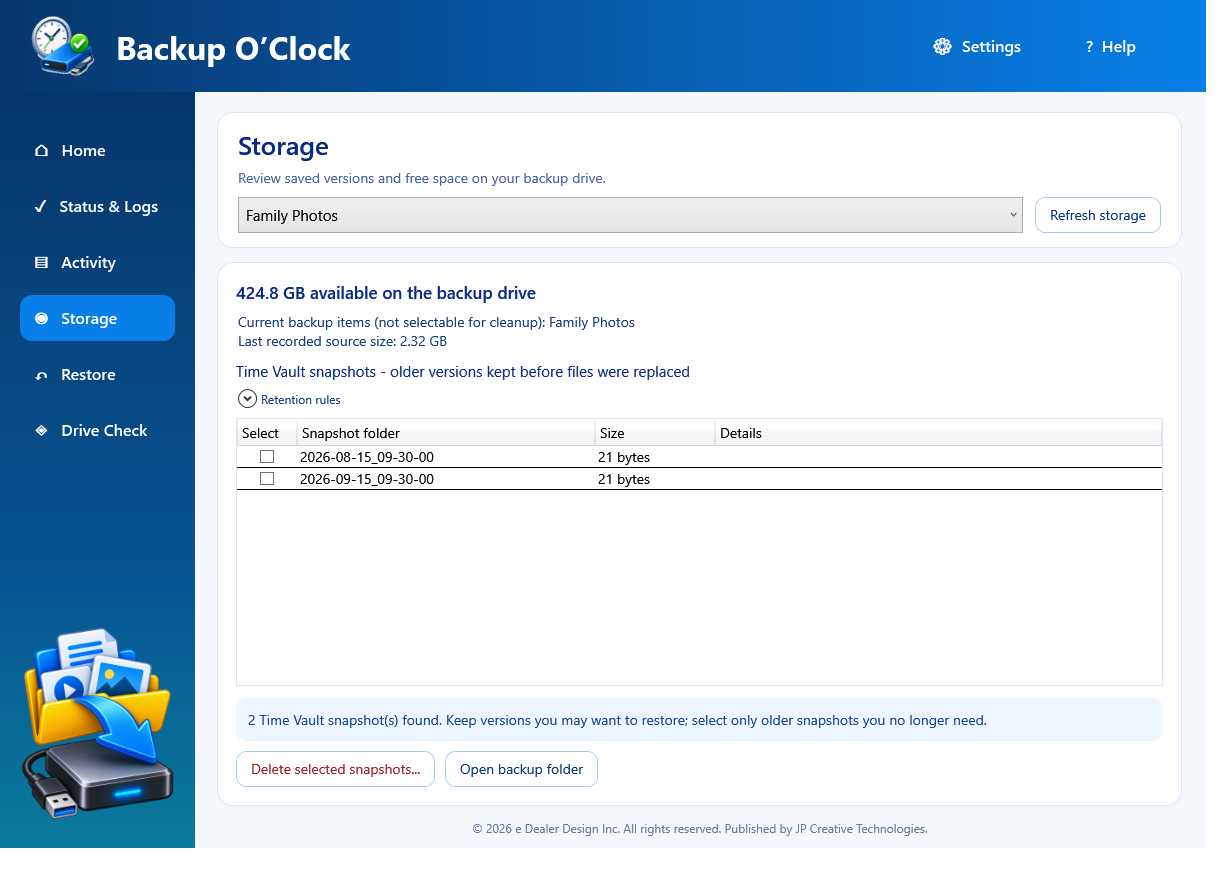
When a changed file is backed up again, Time Vault can save the outgoing backup copy before the newest copy replaces it.
Open step-by-step guide →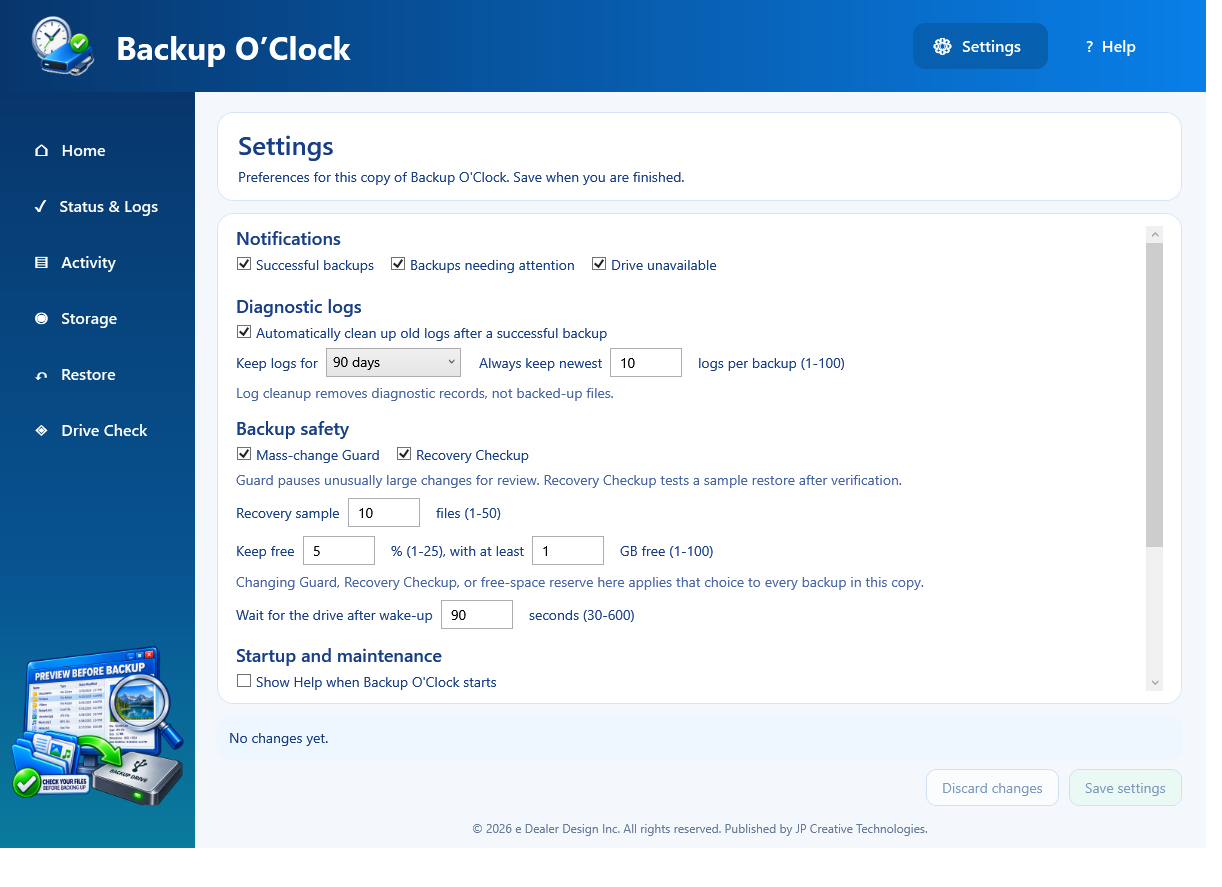
The guard adds a decision point when a run detects an unexpectedly large group of changed files.
Open step-by-step guide →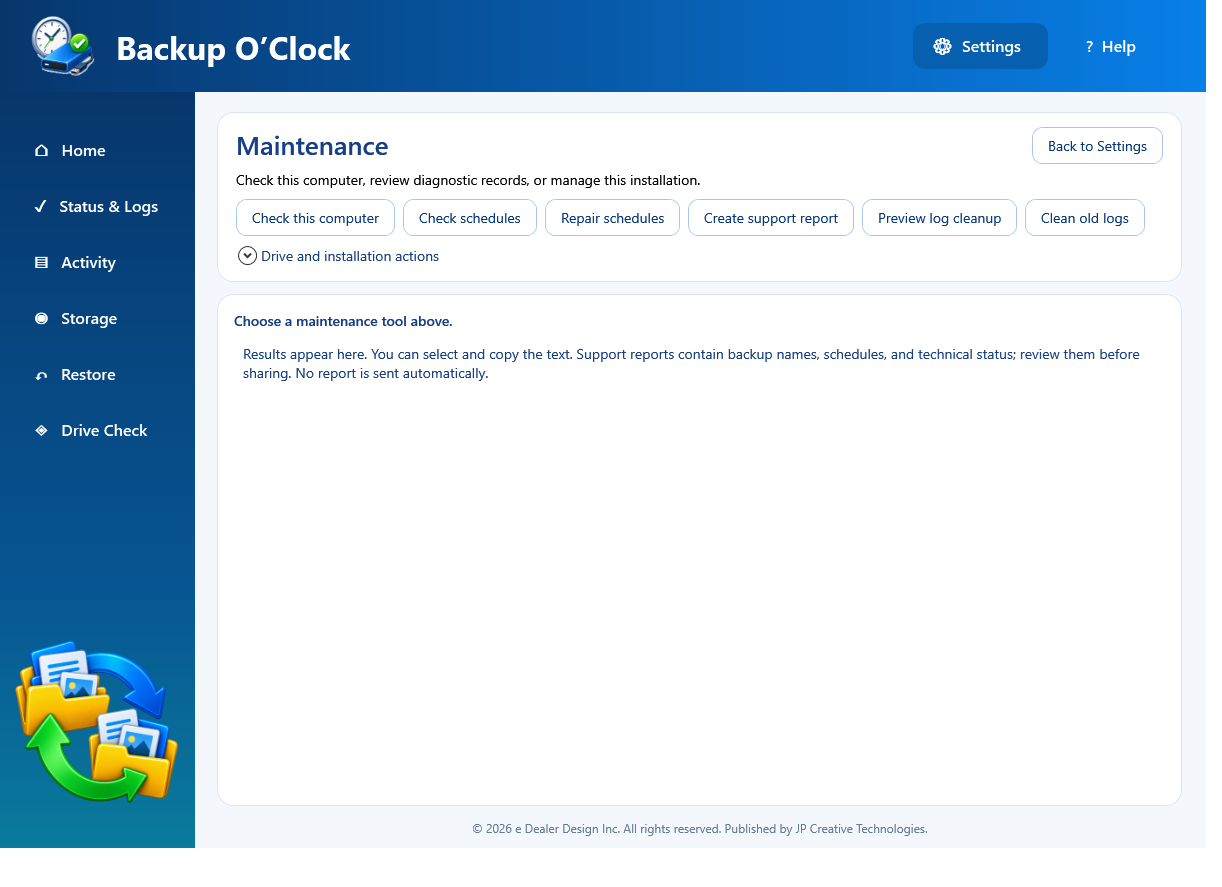
Maintenance commands check the installation and collect useful information without silently sending your data.
Open step-by-step guide →Start with the exact recorded message. The latest log and drive check usually identify the next useful action.
Open step-by-step guide →Home answers which routines are protected, which need attention, and what action is available for the selected backup.
Open step-by-step guide →Change only the routine you selected, review every source and destination, and read the removal confirmation before committing it.
Open step-by-step guide →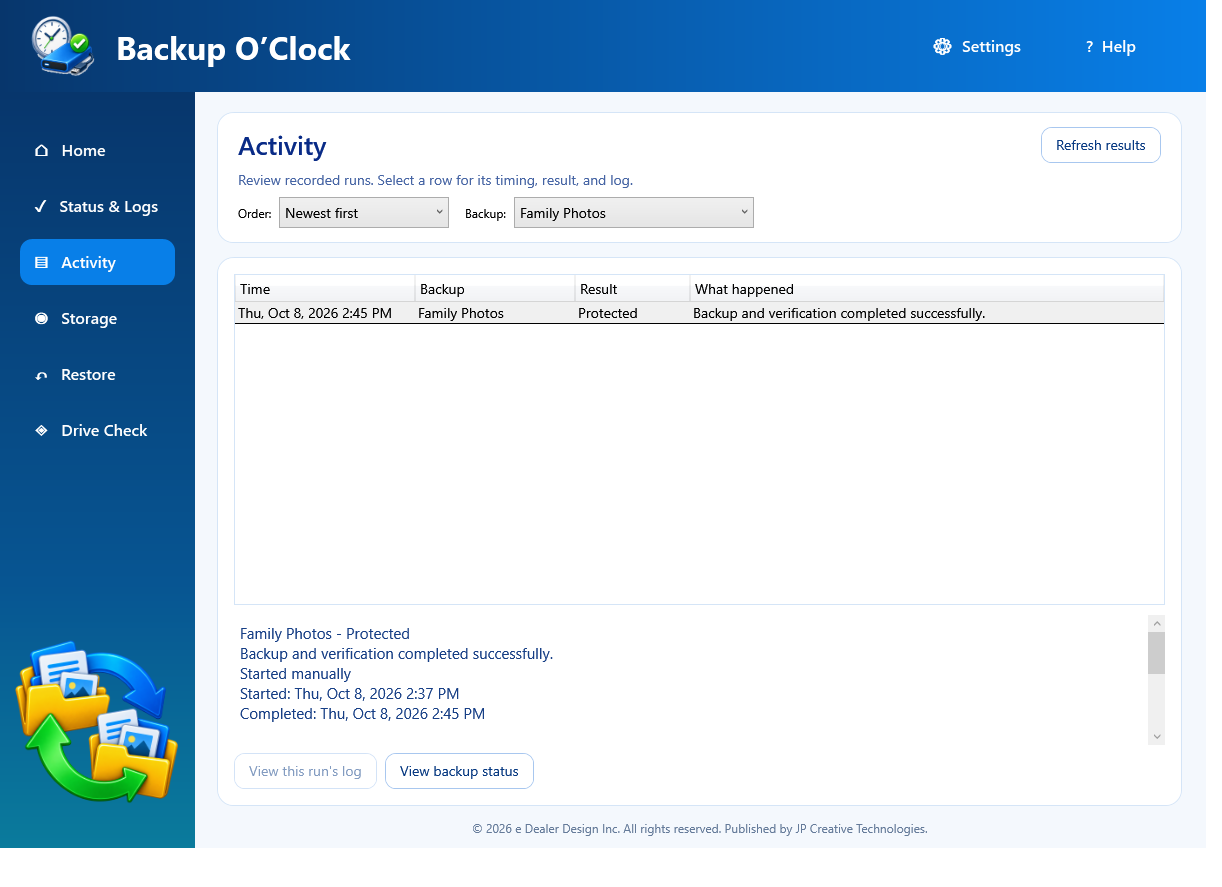
Activity preserves each recorded attempt so you can distinguish an older success from a newer failure or scheduled event.
Open step-by-step guide →Storage shows what the selected routine uses and keeps retention review separate from permanent snapshot deletion.
Open step-by-step guide →Preview the exact destination and conflict count before allowing restored files to be written.
Open step-by-step guide →Settings apply to this copy of Backup O’Clock and explain whether each option affects all routines or only the interface.
Open step-by-step guide →These actions affect different parts of the setup, so read which schedules, settings, program files, and backups remain.
Open step-by-step guide →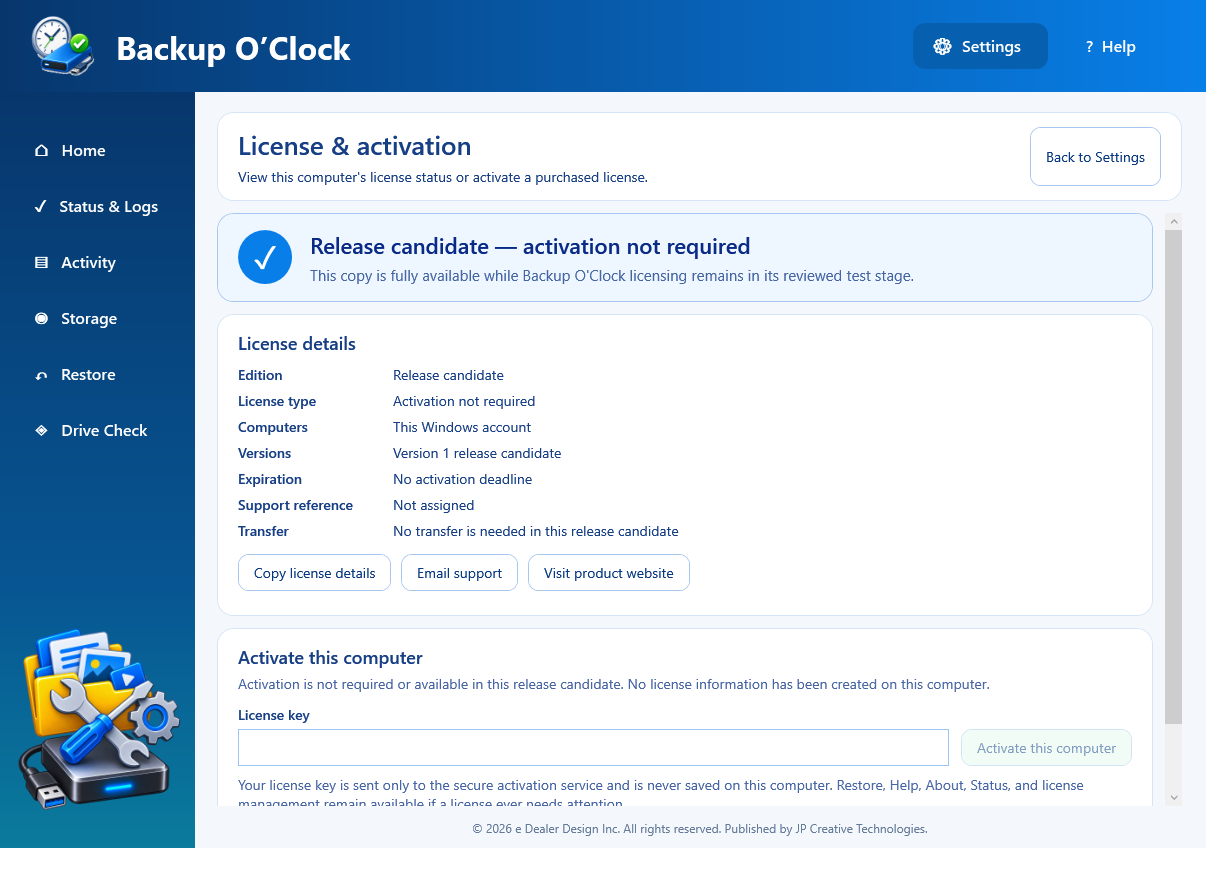
License management identifies this installation without storing the complete license key in settings, logs, or backups.
Open step-by-step guide →The protected files remain ordinary files and can be copied to a clean Windows computer even when the original PC is unavailable.
Open step-by-step guide →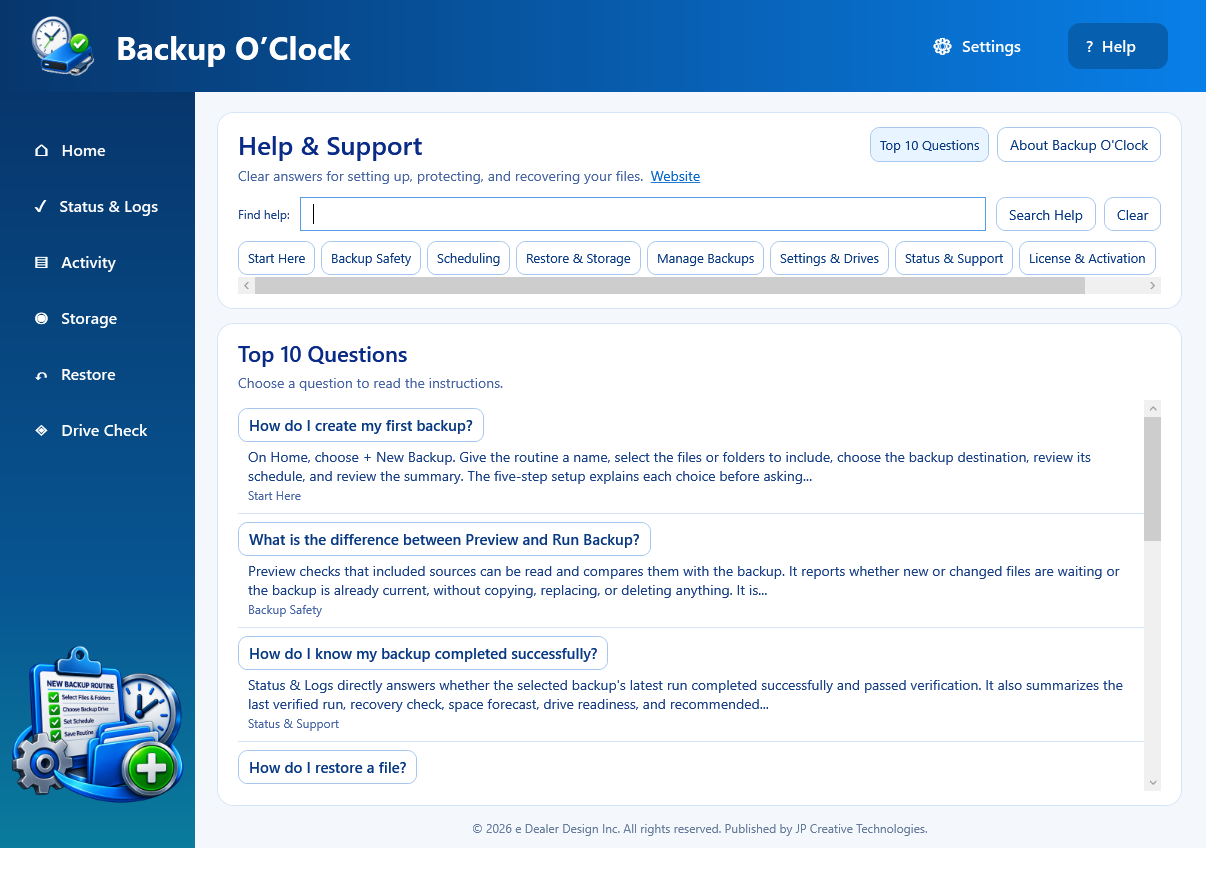
The fastest support request includes the exact message, the action that caused it, and reviewed diagnostic information without private data.
Open step-by-step guide →A–Z quick answers
Open a short answer here. Larger subjects link to a focused guide without making this page unnecessarily long.
193 current controls and behaviors checked. This inventory is tied to the current Windows release candidate and must be reviewed when the product changes.
For stronger protection, keep three copies on two storage types with one copy stored elsewhere or in a trusted cloud location.
Read the complete guide →Open About from Help to read the installed version, publisher, Windows support, website link, and copyable version details.
Read the complete guide →See whether this copy is activated, needs attention, or can continue in its permitted recovery mode.
Read the complete guide →Review recent work across backup routines, including manual and scheduled attempts.
Read the complete guide →Switch Activity between Newest first and Oldest first without changing the saved records.
Read the complete guide →Add a folder and its included contents to the selected backup routine.
Read the complete guide →Add specific files to a routine when protecting an entire folder is unnecessary.
Read the complete guide →Show every saved routine on Home after using the Protected or Attention filters.
Read the complete guide →Protect the configured newest 1-to-100 diagnostic logs per routine even when older than the selected retention age.
Read the complete guide →Show only routines whose newest result or automatic schedule needs review.
Read the complete guide →After a successful backup, remove only diagnostic logs that qualify under the saved age and keep-newest rules.
Read the complete guide →Leave the restore review without writing files so you can change selections, location, versions, or conflict handling.
Read the complete guide →Leave an individual Activity log and return to the same filtered result list.
Read the complete guide →Backup O’Clock asks you to choose the folders containing your important files because the root of a Windows system drive contains protected Windows and program data that can stop a file backup. This applies whether the drive is C:\, D:\, or another letter.
Read the complete guide →The folder on a supported secondary internal or external drive where protected copies are stored.
Read the complete guide →Selected folders keep their structure, individual files are stored directly in the destination, and hidden working folders hold recovery and diagnostic data.
Read the complete guide →Use a short recognizable routine name; changing the name does not rename source folders or move saved files.
Read the complete guide →A different folder or partition on the same physical drive offers little protection from that drive failing. Use separate storage when possible.
Read the complete guide →Portable recovery information written to the destination after a successful verified run.
Read the complete guide →Separate routines may share a schedule, but Backup O’Clock and Windows prevent conflicting copies from running simultaneously.
Read the complete guide →Choose a separate local folder for a test or alternate-location restore. Review the displayed path before continuing.
Read the complete guide →Request a safe stop and wait for the current file operation to finish before closing or disconnecting anything.
Read the complete guide →Relocate the selected source row after a file or folder has intentionally moved, then review its inclusion choices and save.
Read the complete guide →Files whose content differed from the verified destination copy and were written again during this run.
Read the complete guide →Repeat Drive Check for the selected routine after reconnecting the registered drive or resolving a warning.
Read the complete guide →Compare saved automatic schedules with their Windows Task Scheduler entries.
Read the complete guide →Run the built-in installation and compatibility checks used after setup, Windows changes, or support guidance.
Read the complete guide →Include a folder while excluding selected subfolders or files that should not be copied.
Read the complete guide →After confirmation, permanently remove qualifying diagnostic logs while keeping the configured newest minimum. Backup data is not removed.
Read the complete guide →Keep the program open until the recorded result appears. Closing it can interrupt current work even though scheduled launches normally run independently.
Read the complete guide →The verification pass confirms the protected content rather than checking only the files copied in that run.
Read the complete guide →Copy status, edition, computer allowance, versions, expiration, and support reference without exposing the complete license key.
Read the complete guide →Copy the complete selected Status & Logs summary so its result, timing, counts, checks, and next step can be pasted into the support form.
Read the complete guide →Copy the installed product and publisher information from About for a support request.
Read the complete guide →Status reports the measured average for the run. Many small files, antivirus scanning, USB performance, and source or destination health can reduce it.
Read the complete guide →Create an independent routine with its own name, sources, destination, schedule, and safety choices.
Read the complete guide →Collect relevant diagnostic information into a report you can review and choose to attach. It is never sent automatically.
Read the complete guide →Permanently remove only the checked retained-version snapshots after reviewing the confirmation. Current backup files remain.
Read the complete guide →Home and Drive Check show available space on the registered destination; a run also enforces the saved free-space reserve.
Read the complete guide →Reload the last saved Settings values and leave the current unsaved edits unapplied.
Read the complete guide →Remove this installation’s local relationship while leaving existing backup files in place.
Read the complete guide →Backup O’Clock protects selected files and folders. It does not create a bootable disk clone or reinstall Windows.
Read the complete guide →Confirm the registered drive is connected, correctly identified, responsive, and free of relevant recorded Windows warnings.
Read the complete guide →Wait for Backup O’Clock to identify the registered drive by its stored identity instead of selecting a different drive that has the old letter.
Read the complete guide →Change the selected routine’s sources, destination, schedule, inclusions, exclusions, and safety choices.
Read the complete guide →Preview’s forecast of files expected to be written; compare it with the final new and changed counts after the run.
Read the complete guide →Scanned is the full protected set. Copied and changed were written. Skipped files were already current.
Read the complete guide →Select the specific folder that contains your fonts, design files, presets, archives, databases, or other valuable content. Every readable file type inside it is included.
Read the complete guide →Require a percentage and minimum number of gigabytes to remain free on the destination before a backup proceeds.
Read the complete guide →Return to the routine list, clear Home search and filters, and wait for a new selection before actions become available.
Read the complete guide →Search Backup O’Clock’s built-in help by a task, control, or exact message.
Read the complete guide →Add retained older versions to the Restore list when you need a version other than the current backup copy.
Read the complete guide →Use the approved Windows installer, choose the optional desktop shortcut, or launch Backup O’Clock from the Start menu.
Read the complete guide →A supported secondary internal drive can be a destination. A separate external or offsite copy provides stronger physical separation.
Read the complete guide →Preserve the existing destination file and write the restored copy with a different name. This is the recommended conflict choice.
Read the complete guide →Choose an age from 30 days through one year, or Keep forever, for diagnostic-log cleanup eligibility.
Read the complete guide →Open the technical record for the selected routine’s latest attempt when the summary is not detailed enough.
Read the complete guide →Read the selected routine’s newest recorded success, failure, cancellation, Preview, or in-progress message on Home.
Read the complete guide →License & activation shows how many computers the edition allows and whether this installation occupies a slot.
Read the complete guide →Temporary licenses display a recorded expiration. A permanent license has no subscription expiration.
Read the complete guide →Enter a complete key only inside the activation or release screen. The program clears it afterward and does not save it in logs or backups.
Read the complete guide →Read license status, edition, type, computer allowance, included versions, expiration, and the short support reference.
Read the complete guide →Preview and remove old technical logs under the configured age and keep-newest rules.
Read the complete guide →Open computer checks, schedule checks and repair, support reports, log cleanup, drive replacement, disconnect, and removal from Settings.
Read the complete guide →Leave automatic scheduling disabled and use Preview or Run Backup from Home when you choose.
Read the complete guide →Pauses an unusually large change set for review before it updates many destination files. It does not continuously monitor the PC.
Read the complete guide →Create separate routines for different sources, destinations, or schedules. Runs are handled individually rather than simultaneously.
Read the complete guide →Files that did not already exist at the destination and were added during this run.
Read the complete guide →Choose which successful, attention, and unavailable-drive results should produce Windows notifications.
Read the complete guide →Open the selected routine’s verified destination in File Explorer after the registered drive is ready.
Read the complete guide →Open the destination’s diagnostic-log folder in File Explorer after the registered drive passes readiness checks.
Read the complete guide →After Test Recovery succeeds, open its separate local destination to inspect the sampled restored files.
Read the complete guide →An interrupted run should not be treated as verified. Reconnect the drive, review Status & Logs, run Preview, and run the backup again.
Read the complete guide →Compare source and destination and estimate changes without copying, replacing, or deleting files.
Read the complete guide →Count qualifying diagnostic logs and their space without deleting anything. Connect the registered drive first.
Read the complete guide →Calculate selected items, destinations, existing-file conflicts, and replacements without writing restored files.
Read the complete guide →Preparation, copying, and verification report different kinds of progress; estimates improve after enough work has been measured.
Read the complete guide →Show only Home routines whose newest recorded backup completed and passed verification.
Read the complete guide →A routine is configured but does not yet have a recorded successful verified backup. Run Preview, then Run Backup.
Read the complete guide →After verification, open a configured sample of protected files to add practical recovery evidence to the record.
Read the complete guide →Choose how many files, from 1 through 50, Recovery Checkup samples after complete verification.
Read the complete guide →Reload the locally saved run summaries without starting a drive scan or backup.
Read the complete guide →Rescan the selected routine’s destination use and Time Vault snapshot information.
Read the complete guide →Connect the intended drive, wait for the readiness checks, and use Drive Check. Do not substitute a different drive based only on its letter.
Read the complete guide →After confirmation and secure service approval, remove only the local signed entitlement so the license can activate a replacement computer.
Read the complete guide →Remove the saved plan and approved schedule only after confirming the correct routine. Existing destination files are handled according to the message shown.
Read the complete guide →Delete the selected source row from the routine editor while retaining at least one included file or folder. Save changes to commit it.
Read the complete guide →Remove program integration and files through the proper installed or portable workflow while leaving external backups untouched.
Read the complete guide →Recreate approved Windows Task Scheduler entries so they match the saved Backup O’Clock routines.
Read the complete guide →Allow reviewed restore conflicts to replace existing destination files only after the separate confirmation step.
Read the complete guide →Intentionally register a different physical drive for the routines that should use it. This does not silently move existing backup data.
Read the complete guide →Copy selected protected content from a backup to a safe location you choose.
Read the complete guide →Open the review for only the highlighted Restore items rather than every item currently listed.
Read the complete guide →Write restored content to a separate folder for safe review instead of targeting its original location.
Read the complete guide →Target the saved source location and carefully preview conflicts before replacing or adding files there.
Read the complete guide →Allow Windows Task Scheduler to start the routine after its planned time when the computer becomes available.
Read the complete guide →Prepare the source, copy new and changed files, verify protected content, run recorded checks, and save the result.
Read the complete guide →Wait until Backup O’Clock and Windows finish backup, verification, restore, scans, and open File Explorer activity before ejecting the drive.
Read the complete guide →Commit edits to the selected routine after reviewing the source, destination, schedule, and safety choices.
Read the complete guide →Validate and commit the current notification, log, safety, recovery, reserve, wait, and startup choices for this copy.
Read the complete guide →Choose manual operation or specific days and a time for one routine through Windows Task Scheduler.
Read the complete guide →Choose one or more weekdays and a time for the routine’s Windows scheduled task.
Read the complete guide →The scheduled appointment, actual start, and completion can differ when Windows starts a missed task later.
Read the complete guide →Windows Task Scheduler can launch an approved routine without the main window already being open.
Read the complete guide →Filter the selected routine or source by file name after Restore loads its saved content.
Read the complete guide →Filter the routines shown on Home by name.
Read the complete guide →Choose a routine row before Preview, Run Backup, Edit Backup, status, storage, restore, or drive actions.
Read the complete guide →Read Ready, Protected, or Needs attention for the selected Home routine. The badge summarizes recorded status rather than starting a run.
Read the complete guide →Change notifications, diagnostic-log retention, backup safety, Recovery Checkup, free-space reserve, wake-up wait, and startup behavior.
Read the complete guide →Choose whether the in-app Help page opens automatically when this copy starts.
Read the complete guide →Leave an existing destination file unchanged and omit that conflicting item from the restore write.
Read the complete guide →Reconnect or restore the original source path, or edit the routine if the item moved intentionally. Then Preview again.
Read the complete guide →When no routines exist, choose Start Here to open the New Backup setup. It creates a plan and then opens Preview; it does not claim files are protected yet.
Read the complete guide →Read the latest result, timing, forecast, actual file counts, recorded checks, drive readiness, and next action.
Read the complete guide →Review the protected content and destination use associated with saved routines.
Read the complete guide →Show a Windows notification after an eligible backup finishes and records successful verification.
Read the complete guide →Attach up to five accepted reviewed files within the displayed size limit, after removing private and sensitive information.
Read the complete guide →Send the product version, routine name, exact message, what you clicked, expected result, and optional reviewed screenshots or support report.
Read the complete guide →Save the outgoing backup copy before a changed file replaces it, then find, compare, restore, or remove retained earlier versions.
Read the complete guide →Choose how long snapshots remain eligible and how many newest snapshots are always protected from cleanup.
Read the complete guide →Review each retained version’s date, size, and snapshot folder before selecting it for restoration or deletion.
Read the complete guide →Files whose verified destination copies already matched, so they did not need to be written again.
Read the complete guide →Use an approved newer installer and verify that routines, schedules, settings, and backup access remain available after the update.
Read the complete guide →Read and compare protected content after copying. A run is not recorded as successful until required checks pass.
Read the complete guide →From Activity, open the selected routine’s latest Status & Logs summary without losing the underlying record.
Read the complete guide →From Activity, open the technical log belonging to the exact selected attempt rather than the routine’s newest log.
Read the complete guide →Allow a scheduled run time for the registered drive to become ready after Windows wakes, within the configured 30-to-600-second range.
Read the complete guide →Request Windows wake the computer at the scheduled time when the hardware and power settings support it.
Read the complete guide →The current release targets supported 64-bit Windows 10 and Windows 11 systems that pass the built-in compatibility check.
Read the complete guide →After a major Windows change, run Check this computer and confirm schedules, drive readiness, Preview, and a verified backup.
Read the complete guide →Clear product boundary
Backup O'Clock protects the files and folders selected in each routine. It is not currently a complete disk-cloning, system-imaging, or bare-metal recovery system and does not create a bootable copy of Windows.
For stronger disaster protection, keep another copy on a separate drive stored elsewhere or in a trusted cloud location.
Still need help?
Include the product version, backup name, what you clicked, what you expected, the exact message, and a reviewed screenshot or support report when useful.