
Choose what matters
Select the individual files and folders you want to protect.
Release preparation
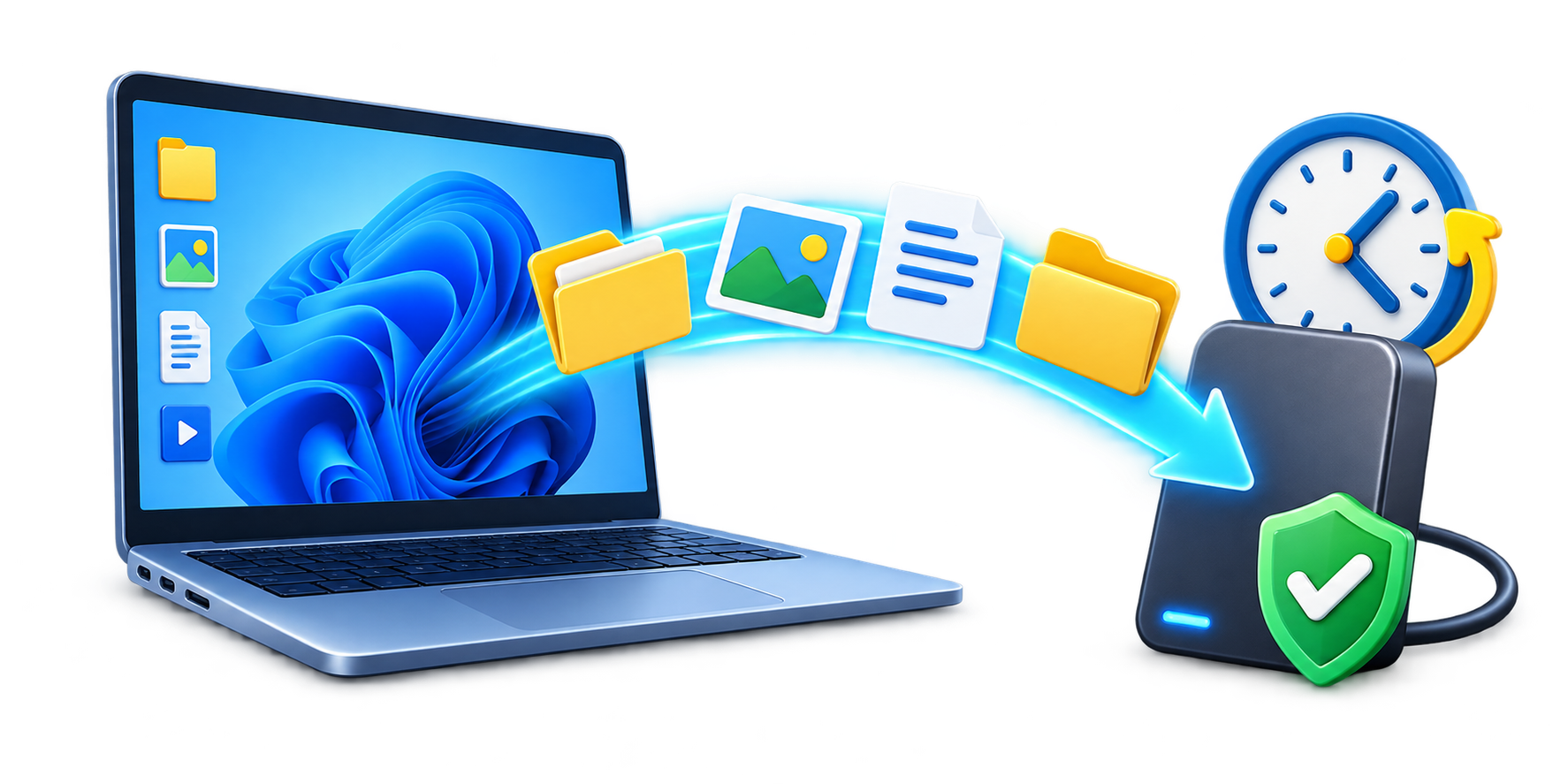
Backup O'Clock helps Windows users protect selected files and folders on a secondary internal or external backup drive with scheduling, understandable status, verification, and recovery checks.
Designed for Windows 10 and Windows 11. Final installed-package compatibility testing is still required before release.
Public downloads will open after installation and release testing are complete.
Simple on purpose
Backup O'Clock’s guided setup asks ordinary questions in a sensible order. No backup jargon and no guessing what happens next.
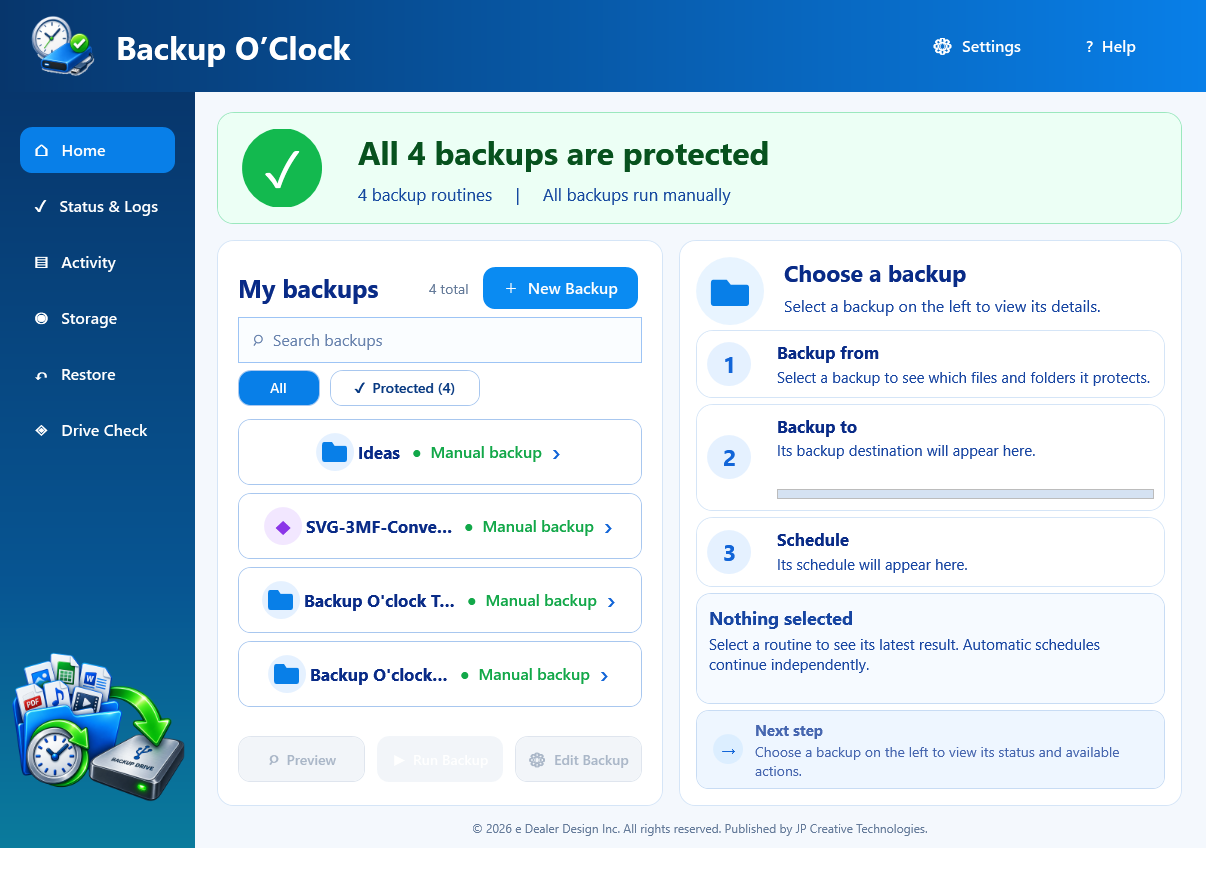 Actual Backup O'Clock interface
Create your first automatic backup:
How it works
The workflow keeps the source, destination, schedule, and latest result visible so users can understand what will happen before they run a backup.
Select the individual files and folders you want to protect.
Register a secondary internal or external drive so Backup O'Clock can identify the correct destination.
Review upcoming changes, run manually, or choose a recurring schedule.
Changed files are copied and checked, followed by a Recovery Checkup.
What Backup O'Clock protects
Backup O'Clock is not currently a complete disk-cloning or bare-metal recovery system. It does not create a bootable copy of Windows or rebuild an entire failed computer. Backups should use a separate, non-system destination drive; supported secondary internal and external drive choices will be identified in the final system requirements.
Features and fit
Built for common home-office and small-business file backup needs, with clear boundaries when a different class of protection is required.
Backup O'Clock protects selected files and folders. It is not currently a complete disk-cloning or bare-metal recovery system.
Planned release
Pricing, license duration, included computers, and checkout details will be announced before release, after code signing, final package testing, and release approval.
System requirements
| Operating system | Windows 10 or Windows 11. Final installed-package compatibility must pass before release. |
|---|---|
| Destination | A supported secondary, non-system internal or external drive with enough free space. |
| Scheduling | Windows Task Scheduler and Windows PowerShell available. |
| Good practice | Keep an additional disconnected or offsite copy of irreplaceable data and test restores regularly. |
Exact installer, storage, and privilege requirements will be published from the final tested package.
Before you decide
These answers define the intended first release without overstating what file-and-folder backup can protect.
Yes, when it is a supported secondary, non-system drive. A separate external drive offers better protection from a failure that affects the entire computer.
No. Backup O'Clock protects selected files and folders. It does not currently create a complete disk image, bootable clone, or bare-metal recovery environment.
It compares the selected content with the destination and copies files that need to be added or updated. Preparation time depends on the number of files, storage speed, and changes.
Yes. Restore selected files to a separate test folder, open several results, and compare them with the originals.
No backup product should promise that. Mass-Change Guard, previous-copy preservation, and a separate drive can reduce risk. A disconnected or offsite copy remains important.
Release preparation
The public download and purchase button will open only after packaging, install, uninstall, security, licensing, delivery, and final release testing pass.